
OpenWRT with raspberry pi
The OpenWrt Project is an Open source framwork to build Linux operating system targeting embedded devices(typically wireless routers). OpenWrt is the framework to build an application without having to build a complete firmware around it; for users this means the ability for full customization, to use the device in ways never envisioned. Instead of trying to create a single, static firmware, OpenWrt provides a fully writable filesystem with package management. This frees you from the application selection and configuration provided by the vendor and allows you to customize the device through the use of packages to suit any application.
The build process
Below steps cover the environment setup and process to build OpenWrt from the source tree for Raspberry Pi board.
Build Environment Setup
Install the following package
 sudo apt-get update
 sudo apt-get install build-essential libncurses5-dev git-core subversion mercurial
 sudo apt-get install libssl-dev libncurses5-dev unzip gawk zlib1g-dev
get OpenWrt repo
Clone OpenWrt git repo using below command
 git clone https://github.com/openwrt/openwrt.git
 git checkout openwrt-22.03
Configure OpenWrt
Run below commands to configure Openwrt
 cd openwrt
 ./scripts/feeds update -a
 ./scripts/feeds install -a
 make menuconfig
Make menuconfig will show a GUI to select various parameters to configure the build process such as –
- Target system & subsystem
- Packages management
- Firmware for various (wireless) soc
- Kernel configuration
- Option to enable support for various tools and libraries
The below build instructions are for building Openwrt for RPi 3B+, and the Target System will remain the same (BCM27XX) for other Raspberry Pi boards as highlighted in the screenshot below.
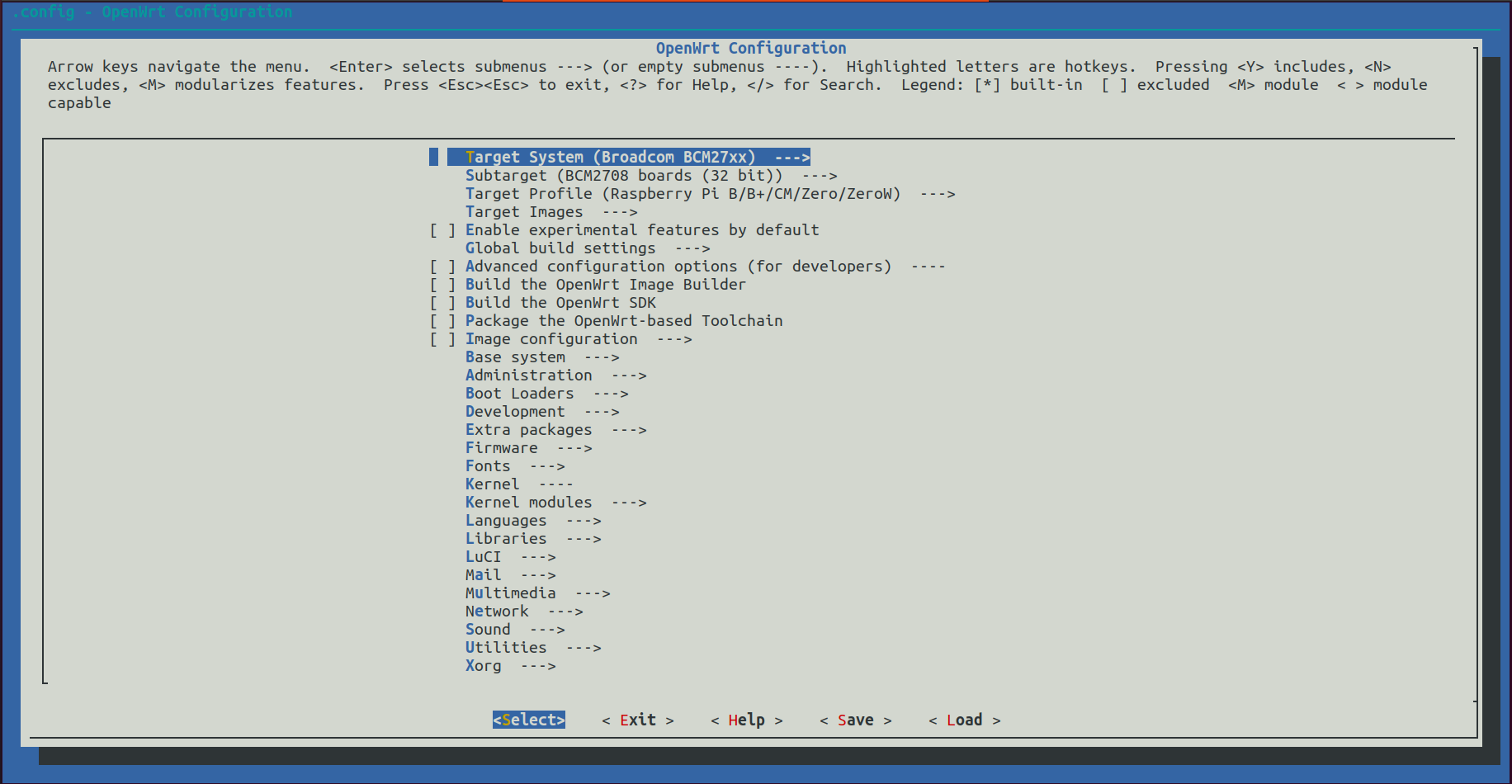
Select the Target System as Broadcom BCM27xx
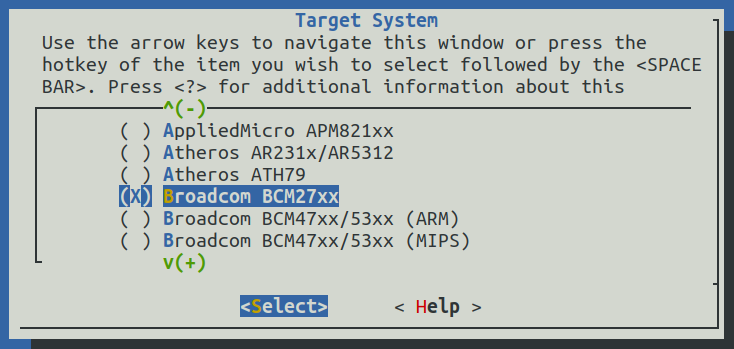
The Subtarget will be BCM2708 for the original Raspberry Pi boards and Pi Zero variants, while, the second option is preferred for Raspberry Pi 2B (BCM2709), Raspberry Pi 3B (BCM2710), and Raspberry Pi 4 (BCM2711) as highlighted below.

Once the necessary modifications been added and saved, you can exit from the GUI.
Compile OpenWrt
start the build process by executing the following command.
make
This process may take few hours. Once the build process is completed successfully you will be able to see the compiled images and packages at “/openwrt/bin/targets/brcm2708/bcm2708”.
NOTE: If the build fails with some errors, it’s better to recompile by using the following command to get more details of the error logs:
make V=s -j1
Prepare SD Card and flashing
once compilation done, the image will be generated in directory bin/targets/bcm27xx/bcm2710.
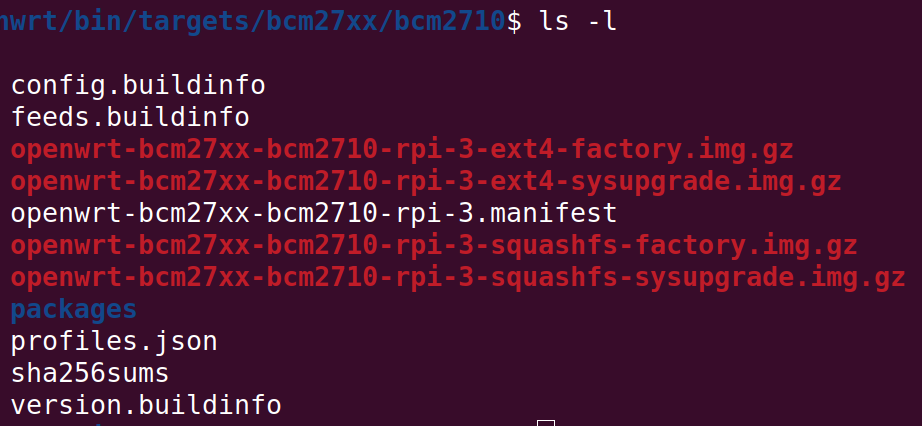
Now extract openwrt-bcm27xx-bcm2710-rpi-3-ext4-factory.img.gz
gunzip openwrt-bcm27xx-bcm2710-rpi-3-ext4-factory.img.gz
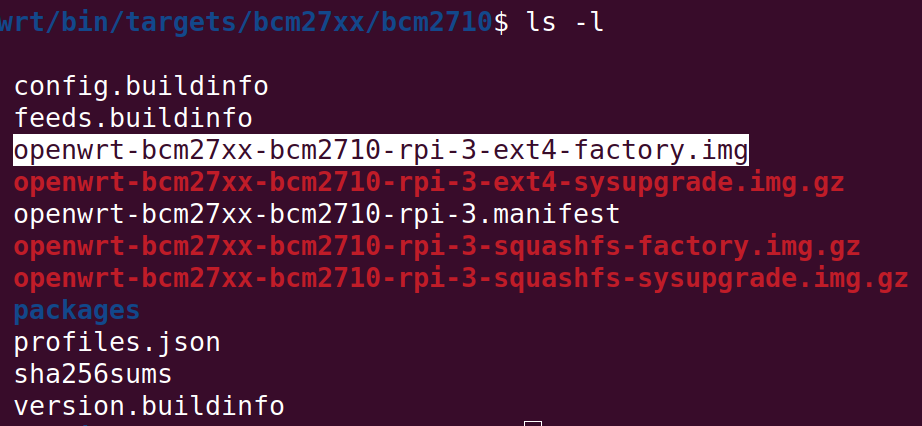
Now connect a SD card and formet it with fat32, use below command to flash image to sd card
sudo dd if=openwrt-bcm27xx-bcm2710-rpi-3-ext4-factory.img of=/dev/<sd-device-file> bs=1M; sync
Unplug SD card and connect to PI and then power on PI.
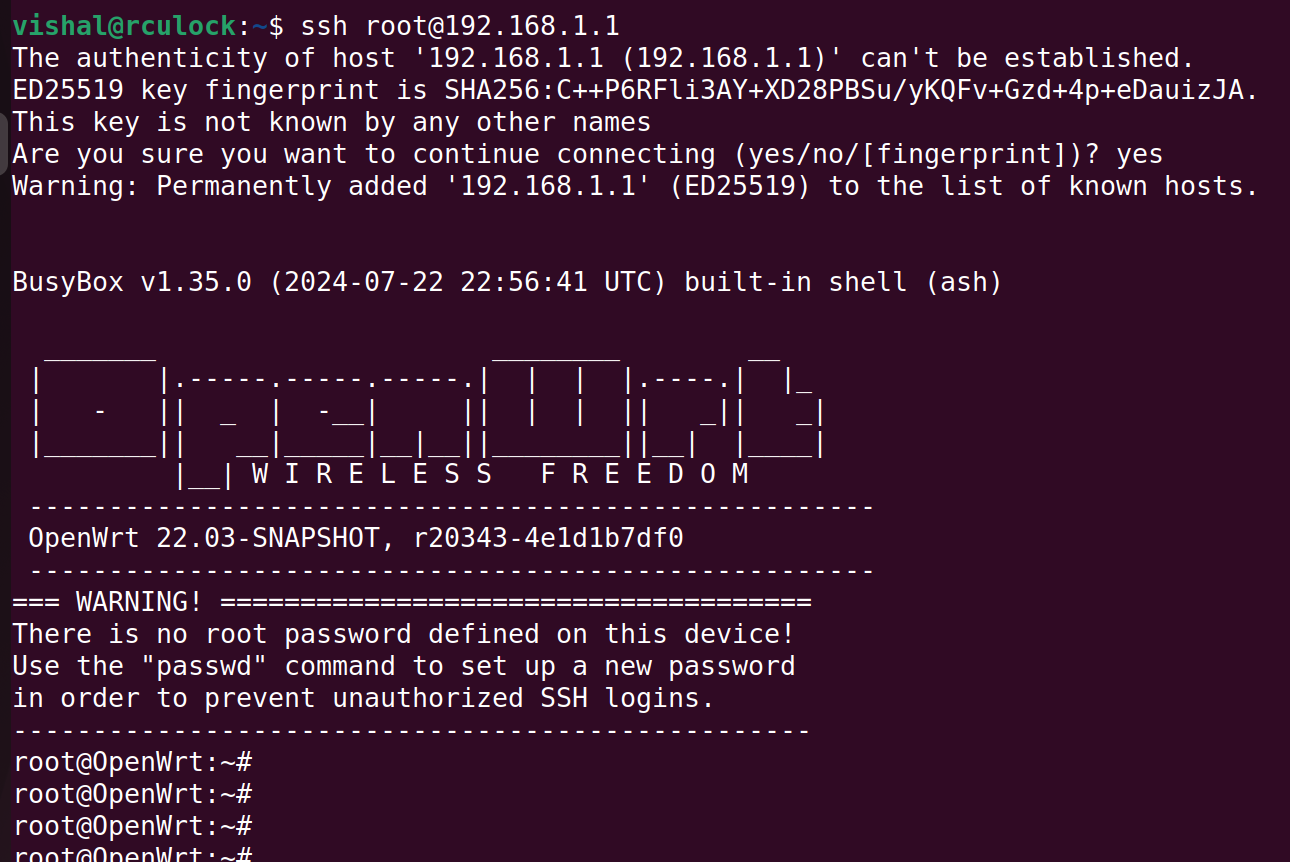
Take SSH access of pi
Connect Ethernet cable to PI and other side to your laptop, PI will automaticall provide IP to your laptop. use ifconfig and get laptop ip, by default PI ip will be 192.168.1.1.
ssh root@192.168.1.1
NOTE: bydefault there are no password.
Configure wifi
After ssh login, modify /etc/config/wireless file.
config wifi-iface 'default_radio0'
	option device 'radio0'
	option network 'lan'
	option mode 'ap'
	option ssid 'PiOpenWrt'
	option encryption 'psk2'
    ption key 'PiOpenWrt'
    option network 'lan'
where default ssid and password is PiOpenWrt, you can modify this. then reload new config
wifi reload
Now try connection with the ssid provided (default is PiOpenWrt).
Compile only specific app
First you need to full compile before using these steps For example: clean, configure and compile only hostapd
#clean
 make package/network/services/hostapd/clean V=s

#configure
 make package/network/services/hostapd/configure V=s

# compile
 make package/network/services/hostapd/compile V=s

# clean, configure and compile at same time
 make package/network/services/hostapd/{clean, configure, compile} V=s
Importent Folders
build_dir/target-arm_arm1176jzf-s+vfp_musl_eab/ here all app gets compiled package/network/services/hostapd contains hostapd makefile and patches bin/targets/brcm2708/bcm2708/ contains compile images
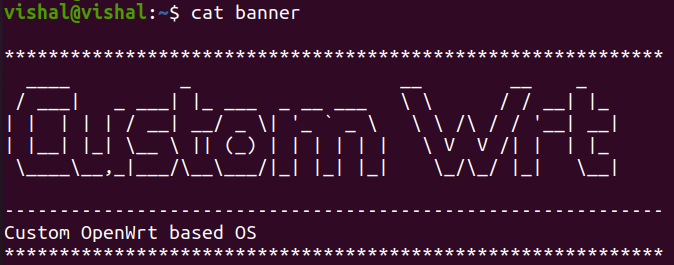
Add a custom pre-login message
You can modify the file “banner” in “openwrt/package/base-files/files/etc” folder so that your image shows a custom pre-login message at boot time.
©2023-2024 rculock.com